> ## Documentation Index
> Fetch the complete documentation index at: https://developer.findity.com/llms.txt
> Use this file to discover all available pages before exploring further.
# Integration Webhook
The API integrations can be set up with a webhook that will send a request as new expense reports are available for fetching. This can either be setup by the native API Integration or as a branded integration.\
A branded integration is configured by Findity, and in this configuration an Integration Webhook can be configured.\
By using the native API integration the same type of Webhook can be configured in the settings for the integration.
The webhook request is sent to an external system as soon as a report(s) is moved from `Ready to send` status to `transfer` status. Where reports in `Ready to send` needs to be verified and handled by an administrator, and reports in `transfer` is where the external system fetches them, when in this status the reports cannot be modified or managed by the administrator until the external system has updated the status.
## How to set up a webhook
Open the API integration editor
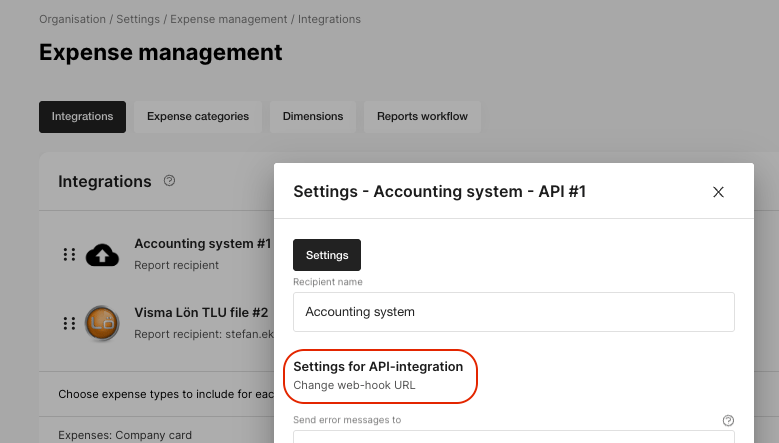 You need to configure the URL of the request and set the content of the payload.
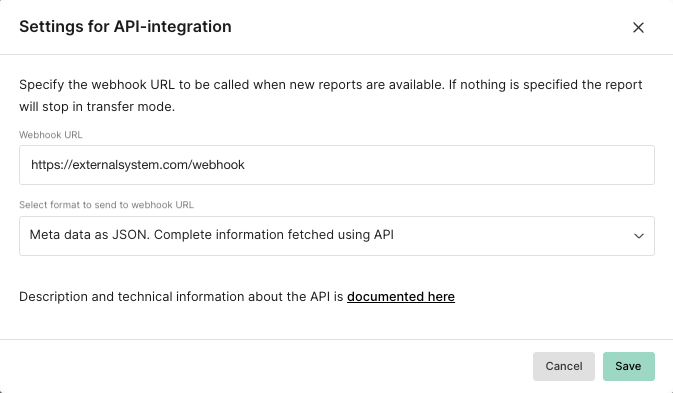 The metadata option provides a shorter message of what is available for fetching, and use the exportID to manage the export through the Exports endpoints.
```json theme={"system"}
{
"exportId": "dfa30e2e70fc40da8a445abccff0db1e",
"numberOfVouchers": 2,
"numberOfReports": 2,
"organizationId": "8ab28c4f8499e01c01849e2631a107a9",
"externalOrganizationId": "My1234",
"clientApplicationId": "16200214"
}
```
Or you can send the full voucher data structure, "Standard format in JSON"
## Error handling and process flow
The reports will remain in Transfer until the external system has changed the status.
The metadata option provides a shorter message of what is available for fetching, and use the exportID to manage the export through the Exports endpoints.
```json theme={"system"}
{
"exportId": "dfa30e2e70fc40da8a445abccff0db1e",
"numberOfVouchers": 2,
"numberOfReports": 2,
"organizationId": "8ab28c4f8499e01c01849e2631a107a9",
"externalOrganizationId": "My1234",
"clientApplicationId": "16200214"
}
```
Or you can send the full voucher data structure, "Standard format in JSON"
## Error handling and process flow
The reports will remain in Transfer until the external system has changed the status.
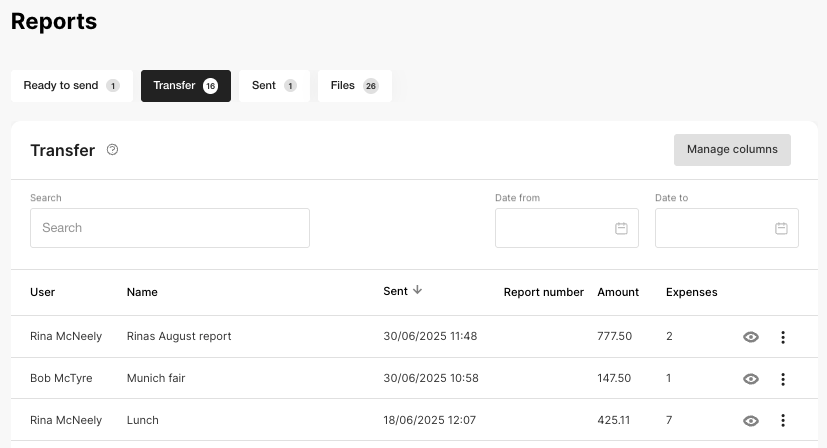 If the webhook isn't sent successfully and we don't get a `200`HTTP response code, we will move the report(s) back to `Ready to send` with an error stating that the external system could not be contacted.